Web Widget
Embeddable JavaScript widget for purchasing e-vignettes directly on your website. The widget handles the entire purchase flow: country selection, vehicle type, duration, vehicle details, and payment.
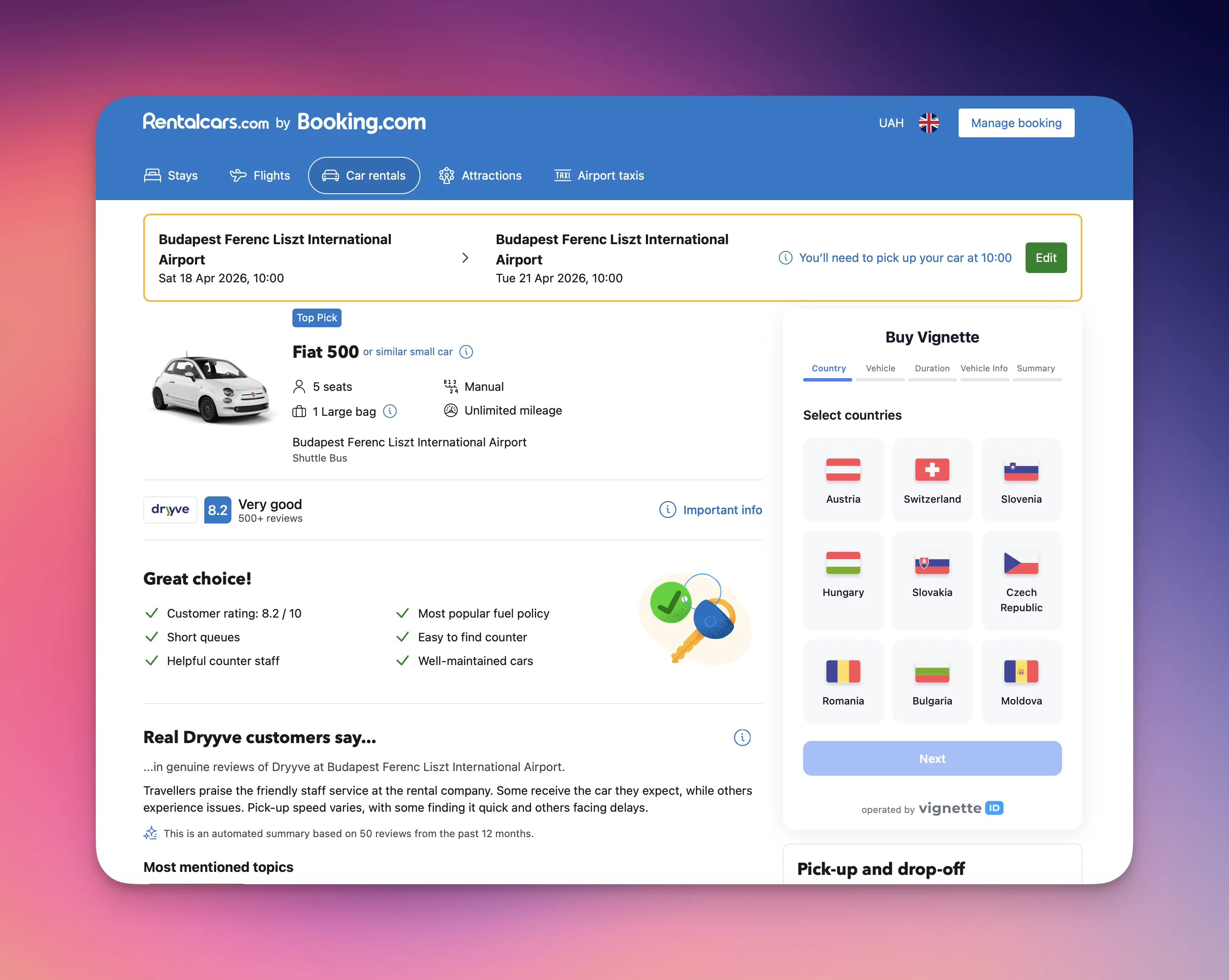
Quick Start
Add the widget to any webpage with just few lines of code:
Code
Installation Methods
Script Tag (Recommended)
Code
Dynamic Injection (Console / Programmatic)
Code
Configuration
VignetteWidget.init(config)
| Parameter | Type | Required | Default | Description |
|---|---|---|---|---|
container | string | HTMLElement | Yes | — | CSS selector or DOM element for the widget |
apiKey | string | Yes | — | Your Vignette ID API key |
apiUrl | string | No | https://api.vignette.id | API base URL. Use https://sandbox-api.vignette.id for testing |
locale | 'uk' | 'en' | No | 'uk' | Widget language |
currency | 'EUR' | 'UAH' | 'USD' | 'PLN' | 'HUF' | No | 'EUR' | Display currency |
theme | 'light' | 'dark' | No | 'light' | Color theme |
position | 'inline' | 'bottom-right' | 'bottom-left' | No | 'inline' | Widget positioning mode |
title | string | No | Localized "Buy Vignette" | Header text shown above the step indicator. Independent from fabLabel. |
fabLabel | string | No | Localized "Buy Vignette" | Text on the floating action button (only for bottom-right / bottom-left) |
width | number | string | No | '100%' | Widget width. Number → pixels (600). Any valid CSS length works: '600px', '100%', '50vw', 'min(600px, 90%)'. |
countries | string[] | No | All available | Filter which countries to show (e.g. ['at', 'ch', 'hu']) |
vehicleTypes | Array<'car' | 'van' | 'moto'> | No | All available | Restrict selectable vehicle types. If exactly one type is provided, the vehicle step is auto-selected and skipped. |
plateCountry | string | No | — | Pre-select the vehicle registration country on step 4. Accepts a 2-letter ISO code (case-insensitive) from the registration-country list. Unknown codes are ignored with a console.warn. When omitted, the select shows its placeholder until the user picks. |
plate | string | No | — | Pre-fill the license plate on step 4. Whitespace is trimmed, letters are uppercased, and characters that wouldn't be accepted by the input (Cyrillic, extended Latin, dash for non-AT/DE plates) are silently stripped — a console.warn is emitted if the value changed. Pair with plateCountry: 'at' or 'de' to keep dashes. |
vinCode | string | No | — | Pre-fill the VIN on step 4. Truncated to 17 characters and filtered to A–H, J–N, P, R–Z and 0–9 (ISO 3779 charset, no I/O/Q). Stored regardless of which countries the user selects — the VIN field only renders when Romania or Moldova is in the selection, but the value persists if the user adds them later. |
vehicleEditable | boolean | No | true | When false, the dedicated vehicle-info step is skipped — the partner must supply plate and plateCountry (and vinCode if the user can pick Romania or Moldova) via init. If those are missing, the option falls back to true with a console.warn. Email and (for Moldova) full name + passport stay on the Summary step regardless. |
onComplete | function | No | — | Callback after order creation |
Position Modes
inline (default)
The widget renders directly inside the container element, embedded in the page flow.
Code
bottom-right / bottom-left
The widget appears as a floating button (FAB) in the corner of the screen. Clicking the button opens the widget panel.
Code
Supported Countries
| Code | Country |
|---|---|
at | Austria |
ch | Switzerland |
si | Slovenia |
hu | Hungary |
sk | Slovakia |
cz | Czech Republic |
ro | Romania |
bg | Bulgaria |
md | Moldova |
Countries without available products are automatically hidden from the list.
Registration Countries
The plateCountry option accepts any of the following ISO codes (passed lowercase). The same list is also shown in the step-4 registration-country <select> inside the widget, so prefilling matches what the user would see manually.
Codes include all EEA countries plus a wide set of non-EU origins (UA, TR, GE, UZ, KZ, etc.) to cover foreign-registered vehicles transiting through.
Show full list (84 codes)
Code
Purchase Flow
The widget guides users through 5 steps (4 when vehicleEditable: false):
- Country — Select one or multiple countries (multi-select)
- Vehicle Type — Car, Van, or Motorcycle (filtered by selected countries)
- Duration — Choose vignette period per country with start date picker
- Vehicle Info — License plate, registration country (VIN for RO/MD). Skipped when
vehicleEditable: falseand the partner has supplied this data via init. - Summary — Order review, total price, email (and for Moldova: full name, passport country, passport number), terms checkbox, payment
Input Validation
- License plate: Latin letters, digits, and spaces only. Dash (
-) allowed for Austrian and German plates - Cyrillic characters are blocked with an error message prompting to switch keyboard language
- Extended Latin characters (e.g.
ü,á,ș) are blocked with a specific error message - Email: ASCII characters only
- VIN: 17 alphanumeric characters (excluding I, O, Q)
Payment
After clicking "Pay", the widget creates an order via the API and displays the payment page (Stripe) inside an iframe. Upon successful payment, the user is redirected to a success page.
Payment Redirect URLs
Configure these URLs in your Vignette ID partner dashboard:
Code
Callback
Use onComplete to handle the order result in your application:
Code
When onComplete is provided, the widget will call it instead of showing the payment iframe.
Environments
| Environment | API URL | Description |
|---|---|---|
| Production | https://api.vignette.id | Live orders with real payments |
| Sandbox | https://sandbox-api.vignette.id | Test orders, no real charges |
Sandbox Test Card
Code
Examples
Minimal (Inline)
Code
Floating Widget with Filtered Countries
Code
Dark Theme
Code
Pre-selected Registration Country
When you know most of your traffic comes from one origin country (e.g. Ukrainian drivers on a UA site), pre-fill the registration-country field so users skip one click.
Code
Pre-filled Plate & VIN (rental flow)
When the partner already has the vehicle data — for example, a car-rental site that knows the customer's booked car — pass plate and vinCode so step 4 is fully prefilled and the user only confirms.
Code
plate is filtered the same way as user-typed input — dashes are kept only for at and de, and any Cyrillic / extended-Latin / non-allowed characters are stripped (with a console.warn so you can see what got dropped). vinCode is uppercased, truncated to 17 chars, and any I/O/Q (or other forbidden chars) are removed.
Hide the Vehicle-Info step entirely
When you already know everything about the vehicle (e.g. a fleet partner whose backend knows the car), set vehicleEditable: false to skip the vehicle-info step. The user only confirms on the Summary step. You must supply plate and plateCountry (and vinCode if Romania or Moldova may be in the selection) — otherwise the widget falls back to vehicleEditable: true with a console warning to avoid trapping the user.
Code
The Summary step still collects email (always) and full name + passport country + passport number (when Moldova is selectable) — those identity fields are required by the API and are never auto-filled.
Lifecycle
init() returns a handle object with a destroy() method. Call it when you tear the widget down — SPA route changes, conditional rendering, modal close — to free resources.
Code
destroy() clears the shadow DOM, removes the internal postMessage listener for payment callbacks, and cancels any pending rate-limit retry timers. Safe to call multiple times.
Without destroy(), repeated init() calls on the same page accumulate postMessage listeners on window — harmless but leaky.
Technical Details
- Bundle size: ~137 KB (38 KB gzipped)
- Dependencies: None (Vanilla TypeScript)
- Style isolation: Shadow DOM — widget styles don't affect the host page
- Browser support: All modern browsers (Chrome, Firefox, Safari, Edge)
- Mobile: Fully responsive, adapts to screen width